
Focus Modes for School: Phone Settings that Help: AI workflows (2025)
Focus Modes for School: Phone Settings & AI Workflows (2025)
Table of Contents
🧭 What Are “Focus Modes for School” & Why They Work
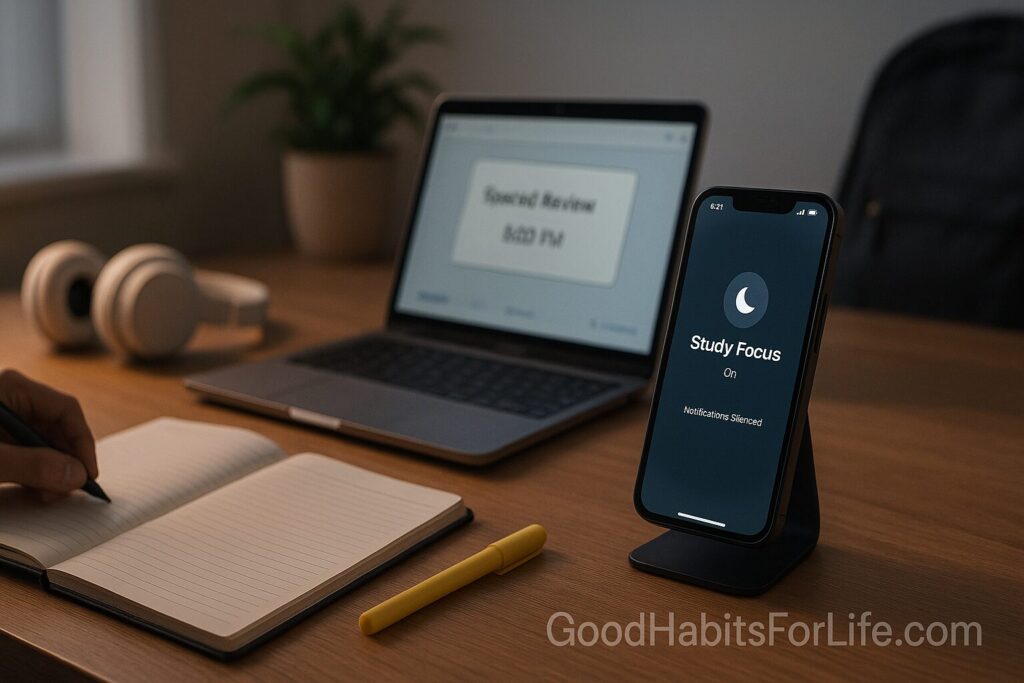
Focus modes are custom phone profiles that mute non-essential notifications, restrict app access, and automate routines during study or class time. On iPhone this is Focus; on Android it’s Do Not Disturb and Digital Wellbeing.
Why it works (evidence):
-
The mere presence of your phone can reduce working memory and problem-solving capacity—even if it’s face down. Silencing and putting it away matters.
-
Notifications, even un-opened, produce measurable performance costs and attentional residue.
-
Interruptions increase speed but elevate errors and stress; structured, interruption-free blocks improve quality.
-
Implementation intentions (“If it’s 5:00 pm, then I start Homework Focus”) boost follow-through.
-
Spaced practice beats cramming; focus blocks + spaced review improve long-term retention.
Bottom line: reduce pings, pre-commit to study blocks, and automate the routine.
✅ Quick Start: 10-Minute Setup (iPhone & Android)
iPhone (iOS 16/17/18+)
-
Settings → Focus → “+” → Custom (School/Homework).
-
Allowed Notifications: People = parents/guardian + 1 emergency contact; Apps = school apps (LMS), calculator, dictionary, timer.
-
Customize Screens: Lock/Home pages with only study apps; hide social icons.
-
Focus Filters: Limit Messages/Calendars; allow only Study calendar; mute work/personal email.
-
Schedule: 17:00–19:00 on weekdays; add “When arriving at Library” trigger; or When event on Study calendar.
-
Home Screen Smart Stack: Timer widget + To-Do + Calendar + Music (lo-fi).
-
Bonus: In Screen Time, set app limits for socials during study hours.
Docs: Apple Support — “Use Focus on iPhone.” (link in References)
Android (Pixel/Samsung/OnePlus)
-
Settings → Notifications → Do Not Disturb (DND) or Digital Wellbeing → Focus mode.
-
Priority list: Starred contacts; allow repeat callers (2 calls in 15 min) for emergencies.
-
App Pauses: Pause social/media apps during Focus; allow calculator/notes/reader.
-
Schedules: Set study hours; add rules for locations (school/library) if available.
-
Bedtime mode: Gray-scale + mute after 22:00 for sleep hygiene.
-
Quick Settings tile: Add Focus/DND to shade for 1-tap start.
Docs: Google Help — “Use Do Not Disturb” & “Digital Wellbeing.” (links in References)
🛠️ Automations & AI Workflows That Do the Boring Parts
iPhone Shortcuts
-
Start Homework: Trigger by time or Siri phrase (“Start homework”). Actions: Enable Homework Focus → Open Notes/Docs → Start 50-minute timer → Play “Study” playlist → Turn on Low Power Mode.
-
Class-Time Auto-Focus: When Calendar event contains “Math/Physics/English,” enable Class Focus; show the day’s slide or note-template.
-
Location Rule: On arriving at Library, enable Focus + turn on Hotspot Off + brightness 60%.
Android (Routines/Rules/Tasker)
-
Tasker profile: If connected to School Wi-Fi, enable DND + launch Notion + set volume 0%.
-
Bedtime Routine: 21:30 → DND + gray-scale + auto-open next-day planner.
-
Calendar Rule: During “Exam Prep” events, whitelist only parents + teachers.
Cross-device AI helpers
-
Calendar-aware plans: Use your AI assistant to generate a daily study plan from tomorrow’s class/exam calendar, then write it into your notes app.
-
Voice templates: “Plan a 2-hour chemistry session with Pomodoro 50/10 and 10 MCQ practice at the end; export steps to Reminders.”
Tip: Keep automations visible and reversible (one-tap off). Over-automation that hides controls creates frustration.
🧠 Techniques & Frameworks that Multiply Focus
-
Time-boxing (50/10 or 25/5): Long problems = 50/10; vocab/practice = 25/5. Use a physical timer or on-screen countdown.
-
Implementation Intentions: If-Then rules tied to time/place (“If it’s 5 pm at home desk, then Homework Focus on + open Biology notes”). Boosts adherence.
-
App Partitioning: Separate work vs. fun home screens; study widgets on Screen 1; social apps buried in App Library.
-
Environment Reset: Phone out of sight (bag/locker); if at home, place behind you on a shelf. The distance helps.
-
Spaced Review: Add a 10-minute spaced recall block after each study session (e.g., Day 1, 3, 7).
-
Single-window rule: On laptop, one browser window, one tab group per subject; block auto-playing sites.
📅 7-Day Starter Plan
Goal: Reach 120–180 minutes of deep work on school days with <3 non-urgent interruptions.
-
Day 1 (Mon): Create Focus/DND profile + priority list; test a 25/5 block (2 cycles).
-
Day 2: Build Start Homework automation; set Study calendar; do a 50/10 + spaced recall.
-
Day 3: Create minimalist Study home/lock screens; remove social icons; try library location trigger.
-
Day 4: Add class-time Focus tied to timetable; measure deep-work minutes.
-
Day 5: Optimize allow-list (remove one noisy app); rehearse emergency bypass.
-
Day 6 (Sat): Review app limits; create subject note templates; back up shortcuts/routines.
-
Day 7 (Sun): Weekly review: what stole attention? Adjust schedules. Plan next week’s study blocks.
Checkpoint: If deep-work minutes <90 on any weekday, shorten blocks to 25/5 and reduce allow-list further.
👥 Variations: Teens, Parents, and Teachers
Teens
-
Keep one “Urgent Only” path (starred contacts + repeat callers).
-
Use shared calendars so parents can see study windows without texting.
-
Put music on downloaded playlists to avoid YouTube rabbit holes.
Parents/Guardians
-
Agree on a Focus contract: study windows, urgent exceptions, and a post-study “fun window.”
-
Use Family Sharing/Family Link to enforce app limits during school nights—only if needed and with teen consent.
Teachers
-
Post a class Focus code: “Phones face-down; DND on; allow-list = parents + office.” Model it live for 60 seconds.
-
Provide digital note templates to reduce app-switching.
⚠️ Mistakes & Myths to Avoid
-
Myth: “I can multitask.” Real talk: toggling tasks adds errors and slows learning.
-
Mistake: Allow-listing group chats “just in case.” Keep emergencies only.
-
Mistake: Over-blocking. Leave a humane exit (one tap) so you actually use Focus.
-
Myth: “Focus mode is only for exams.” Use it for homework, reading, labs, and sleep prep.
💬 Real-Life Scripts & Examples
-
Siri/Assistant phrase: “Start Homework Focus.” → Enables Focus, opens Notes, starts 50-minute timer, plays Lo-Fi.
-
Text to friends (copy-paste):
“Hey! I’m on Homework Focus 5–7 pm. If it’s urgent, call twice. I’ll reply after.” -
Ask parents:
“Can we set a shared rule: unless urgent, no calls 5–7 pm while I study? I’ll check in at 7:15.” -
Teacher intro (60-sec):
“Everyone, switch on DND. Parents and office are still allowed. This helps you think clearly during the first 10 minutes.”
🧰 Tools, Apps & Resources (Pros & Cons)
| Tool | What it does | Pros | Cons |
|---|---|---|---|
| iOS Focus | Custom profiles, filters, schedules | Deep integration; Focus Filters; custom screens | Takes a few minutes to set correctly |
| Android DND / Digital Wellbeing | Pause apps, priority list, schedules | Universal; app pauses; Bedtime mode | Features vary by brand |
| Shortcuts (iOS) | One-tap or automated routines | Powerful; calendar/location triggers | Can be fiddly at first |
| Tasker (Android) | Advanced automation | Anything-triggered; super flexible | Learning curve; paid |
| Focus To-Do / Pomodoro | Block timers + tasks | Simple; visible countdown | Some ads; need discipline |
| Forest / Flora | Phone-down gamification | Fun; visual | Can be bypassed |
| Freedom / Cold Turkey | Cross-device website/app blocking | Strong blocks; schedules | Paid; setup needed |
| Screen Time / Family Link | App limits; reports | Helpful nudges; parental tools | Can feel strict without buy-in |
🔑 Key Takeaways
-
Cut noise first: strict allow-lists and paused apps during study/class.
-
Tie Focus to time, place, or calendar so it turns on without thinking.
-
Use implementation intentions and Pomodoro/time-boxing to maintain momentum.
-
Measure deep-work minutes; improve by small weekly increments.
-
Keep trust: a clear emergency path + a post-study fun window.
❓ FAQs
1) Should I use 25/5 or 50/10?
If a task needs sustained reasoning (math proofs, essays), use 50/10. For drills or vocab, 25/5 works well. Try both; track which yields more correct answers.
2) What about music—helpful or harmful?
Instrumental, familiar, or lo-fi music at low volume is usually fine; lyrics can reduce reading comprehension. Test it during practice, not during exams.
3) How do I handle team chats for group projects?
Create a Group Study Focus with only that group’s chat allowed. Keep it time-boxed and mute after the block.
4) Can I let certain apps through but silence their badges?
Yes. On iOS, allow an app but turn off badges in Notifications; on Android, pause the app in Focus mode but allow calls.
5) What if my school requires a 2FA app?
Allow-list the 2FA app and your school email; keep all other email/social apps blocked during study/class.
6) How do I stop myself from toggling Focus off?
Add friction: put the toggle on the second Control Center page/Quick Settings, or use an automation that re-enables Focus when you’re on study Wi-Fi.
7) Is grayscale/monochrome useful?
For some students, yes—it reduces the “reward” of apps. Enable during study and after 22:00 for sleep hygiene.
8) I still check my phone. Any tips?
Put it out of sight (bag/another room), use a physical timer, and keep a scratch note for “things to check later.”
References
-
Apple Support. Use Focus on iPhone. https://support.apple.com/guide/iphone/use-focus-iphb0b5f5c3/ios
-
Google Help. Use Do Not Disturb on Android. https://support.google.com/android/answer/9069335
-
Google Help. About Digital Wellbeing. https://support.google.com/android/answer/9346420
-
Ward, A. F., Duke, K., Gneezy, A., & Bos, M. W. (2017). Brain Drain: The Mere Presence of One’s Own Smartphone Reduces Available Cognitive Capacity. Journal of the Association for Consumer Research. https://www.journals.uchicago.edu/doi/10.1086/691462
-
Stothart, C., Mitchum, A., & Yehnert, C. (2015). The attentional cost of receiving a cell phone notification. Journal of Experimental Psychology: Human Perception and Performance. https://psycnet.apa.org/record/2015-55950-001
-
Mark, G., Gudith, D., & Klocke, U. (2008). The Cost of Interrupted Work: More Speed and Stress. CHI ‘08. https://dl.acm.org/doi/10.1145/1357054.1357072
-
Masicampo, E. J., & Baumeister, R. F. (2011). Consider It Done! Plan Making Can Eliminate the Cognitive Effects of Unfulfilled Goals. Journal of Personality and Social Psychology. https://psycnet.apa.org/record/2011-18672-001
-
Cepeda, N. J., Pashler, H., Vul, E., Wixted, J. T., & Rohrer, D. (2006/2008). Distributed practice in verbal recall tasks: A review and quantitative synthesis. Psychological Bulletin. https://pubmed.ncbi.nlm.nih.gov/16822139/
-
American Academy of Pediatrics. Family Media Plan. https://www.healthychildren.org/English/media/Pages/default.aspx